Version history
Roadie snapshots a roadmap's content as you edit. You can view an earlier version, see what has changed since, and restore it.
History is "go back", not step-by-step undo: restoring replaces the current plan wholesale rather than reversing individual edits.
A snapshot holds roadmap content: contexts, items, milestones, the schedule, and dependencies. Visibility, contributors, and saved Jira queries are not part of it, so restoring never republishes a roadmap you made private or rewrites who has worked on it.
How versions are recorded
Roadie captures versions as you work:
- Automatic snapshots are taken while you edit, at most once every few minutes so a busy session does not fill the list. Deletions are the exception: Roadie always snapshots first, whatever the interval.
- Checkpoints are versions you have named.
Restoring is itself recorded: the state you replaced stays in history.
How long versions are kept
Automatic snapshots thin out with age. Everything from the last day is kept, the past week is reduced to one snapshot per hour, and older history to one per day, kept indefinitely.
Checkpoints are never thinned. Save one to be certain a state remains available.
Open version history
- Open the roadmap.
- Select its name in the top bar.
- Select Version history.
The list opens beside the roadmap: Current version at the top, then checkpoints, then automatic snapshots grouped by day. Select a day to expand or collapse it; the most recent is already open.
Checkpoints sit above the day groups to stay findable, so the list is not strictly chronological: one saved yesterday appears above snapshots from this morning.
Select Current version to return to the live roadmap, or the close button to leave history.
View an earlier version
Select a version to open it. Roadie shows it in place of the current roadmap, under a banner.
An earlier version is read-only: you can switch views, scroll, and zoom, but not edit. Nothing is lost by looking—the live roadmap returns when you leave.
Select another version to move straight to it, so you can scrub through history looking for a particular state.
See what changed
While viewing an earlier version, select Show changes. Roadie lists everything that differs between it and the current roadmap—everything restoring it would change.
Comparison is always against the current roadmap. Select Hide changes, or any view in the top bar, to return to the version itself. Choosing another version keeps the comparison on, so you can step through history and see how the differences change.
Reading the comparison
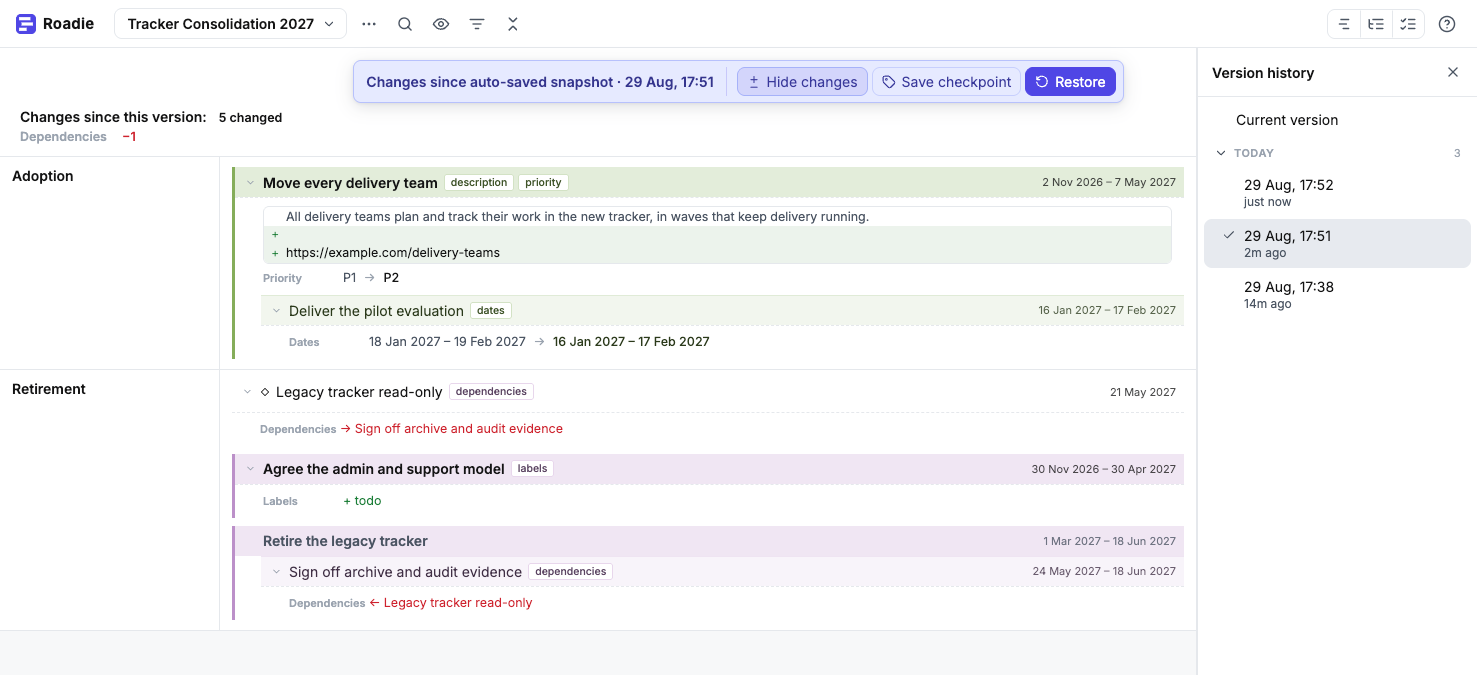
A summary strip gives the totals: items and milestones added, removed, or changed, plus whether the schedule, dependencies, or context order changed.
Below it, changes appear in their contexts as rows:
- Added and Removed mark entities present in only one version.
- Terms beside a title name what changed—dates, description, priority, moved.
- Flags, tentative timing, and risk read as
+ flaggedor− at risk: the term, signed for gained or lost. - A row with neither is an unchanged parent, listed only to hold its changed child.
- A renamed, recoloured, or reordered context says so beside its name. Reordering is reported, not which positions moved.
Select a row with a disclosure arrow to see the detail: altered values as
old → new, and description changes line by line, marked + and − in
the margin and tinted green and red.
Rows without an arrow are already complete: an added or removed entity is the change, and a signed term states a flag in full.
A dependency change appears on both entities it connects, except where one was
added or removed—those rows carry no detail. The arrow gives direction, not
whether the dependency was added: → where this entity is the prerequisite,
← where it is the dependent. Gained dependencies come first, in green; lost
ones follow, in red.
Save a checkpoint
Naming a version keeps it out of the thinning and labels it in the list—worth doing before a replanning exercise or at the end of a planning cycle.
To mark the roadmap as it stands now:
- Select the roadmap name in the top bar.
- Select Save checkpoint….
- Enter a name and select Save.
To keep a version you have found in history:
- View that version.
- Select Save checkpoint in the banner.
- Enter a name and select Save.
The second path is how an automatic snapshot becomes permanent: scrub, recognize a state worth keeping, name it there and then.
To rename or delete a checkpoint, view it and select Rename or Delete. Deleting removes the history entry only; the roadmap is untouched.
Restore an earlier version
- View the version you want to restore.
- Select Restore in the banner and confirm.
The roadmap returns to that version, and the state you replaced stays in history, so the restore can itself be undone.
Restoring keeps every entity's identity, so comparisons across a restore still describe what actually changed, and a link you have shared to an item or a milestone still opens it.